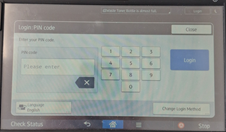
Scanning to email is set up through Ricoh Smart Integration. You will need to use your 4-digit PIN. If you have forgotten your PIN, try searching for the previous email containing it. If you are unable to find it, email Requests@cpcuk.co.uk and we can issue a new PIN.
- Enter your 4-digit PIN, then press Login. If the login screen is not displayed, check the top-right corner to see whether someone is already logged in. If so, press Logout first.
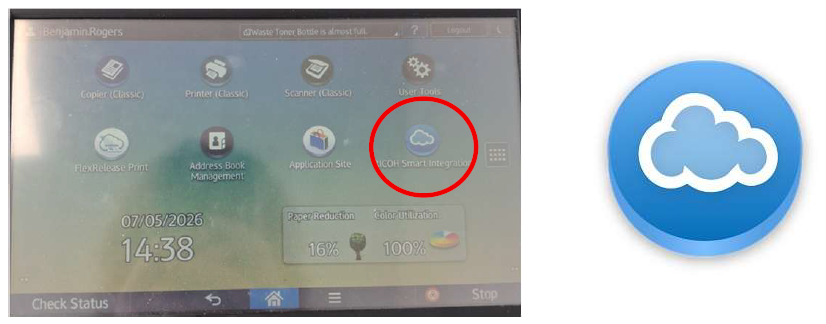
- Once you are signed in, select RICOH Smart Integration.
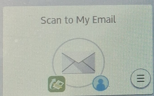
- When the app opens, select Scan to My Email.
- Update the details as required (for example, the subject and file settings). Place your document on the scanner, then press Start.
- When the scan is complete, select Finish or Continue. Select Continue if you have more items to scan.
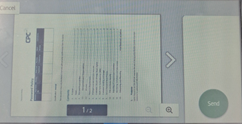
- After selecting Finish, you will see a preview of your scans. When you are happy with them, press Send.
- You should receive the scanned document(s) within 15 minutes. This may take longer depending on how many items have been scanned.
- Finally, select Logout (top right) so the next user can sign in.
Was this article helpful?
That’s Great!
Thank you for your feedback
Sorry! We couldn't be helpful
Thank you for your feedback
Feedback sent
We appreciate your effort and will try to fix the article